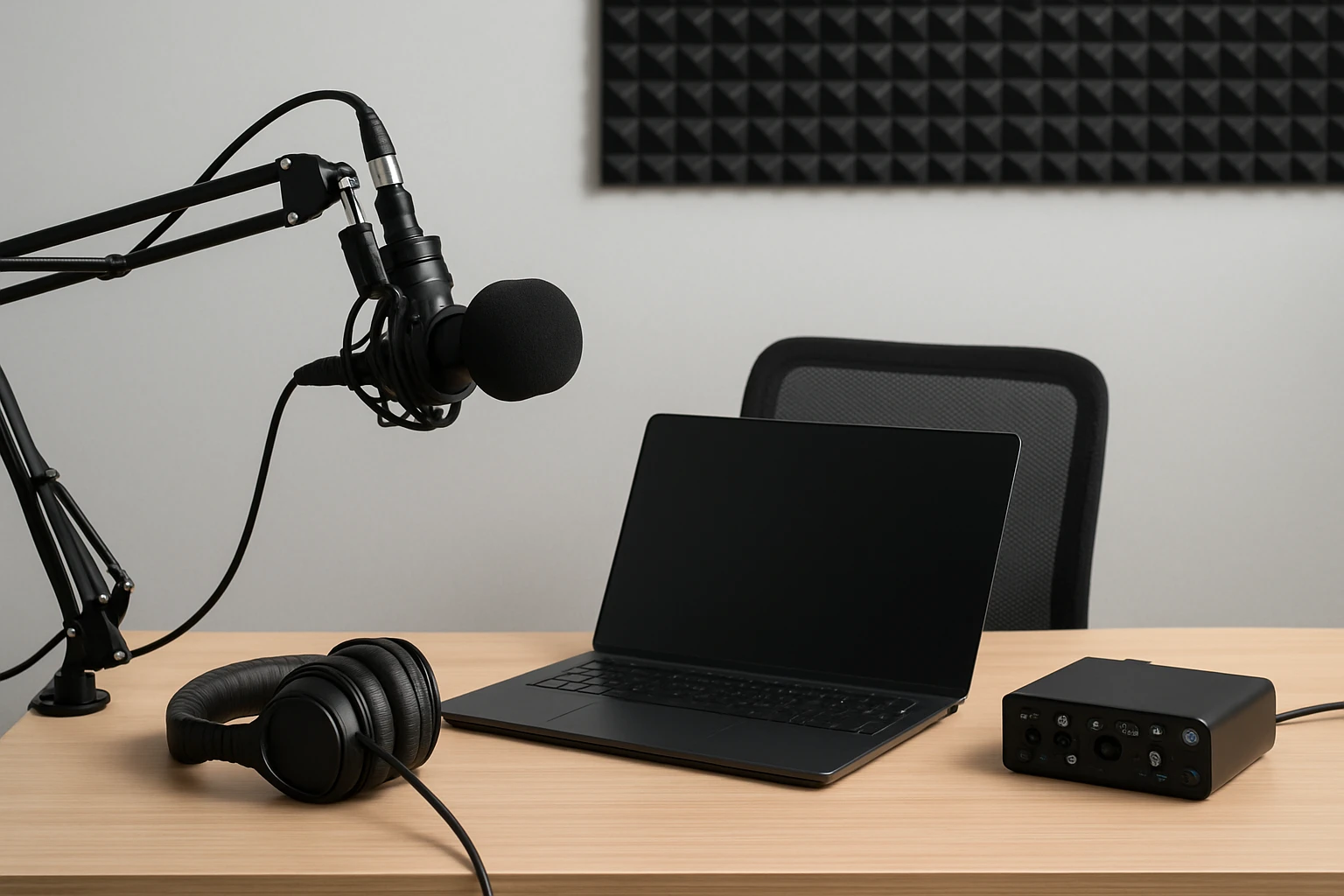
How to Set Up a Budget Podcast Studio: Complete Step‑by‑Step Checklist for Beginners
Introduction
One who is new to podcasting often wonders how to achieve professional sound without spending a fortune. This guide explains the entire process, from selecting a quiet location to publishing the first episode. The reader will learn how to assemble essential equipment, configure software, and avoid common pitfalls. By following the checklist, one can launch a high‑quality podcast while staying within a modest budget.
What You Will Need
The following items constitute a solid foundation for a budget studio. Each product is linked to an Amazon page where it can be purchased if desired.
- Desktop or sturdy table
- Acoustic treatment (foam panels or blankets)
- Headphones for monitoring
- Recording software (free options such as Audacity)
- ZealSound USB Gaming Microphone
Step 1: Choose and Prepare a Quiet Space
The first step is to identify a room with minimal external noise and limited echo. One should close windows, turn off HVAC fans, and schedule recording sessions during quiet hours. Adding a rug, heavy curtains, or portable acoustic panels will absorb reflections that otherwise cause a hollow sound. Measuring the room with a simple smartphone app can reveal problematic frequencies that can be mitigated with inexpensive foam.
Step 2: Set Up the Desk and Acoustic Treatment
Place a stable desk against a wall that does not face a window, as this reduces ambient noise. Position acoustic panels at the first reflection points—typically the side walls at ear level. If budget constraints exist, one may hang thick blankets or moving‑blanket quilts as a temporary solution. Ensure that the microphone will sit at mouth level and that the desk surface is free of clutter that could cause vibrations.
Step 3: Install the Microphone
One should unpack the ZealSound USB Gaming Microphone and examine the included accessories. The microphone features a cardioid pickup pattern, 96 kHz sampling rate, and an on‑board noise‑cancellation chip, which together deliver studio‑quality voice capture for spoken word content. The boom arm allows placement at the optimal distance of six to eight inches from the mouth while keeping the desktop clear for notes and a laptop. To attach the mic, tighten the desk clamp on a surface up to 1.8 in thick, extend the arm, and lock the swivel at the desired angle. The built‑in mute button with red RGB indicator provides a visual cue that is especially useful during live streams or when sharing the recording space with others.
Why this microphone is appropriate for a budget studio is that it combines high‑resolution audio (up to 96 kHz) with plug‑and‑play USB connectivity, eliminating the need for an external audio interface. At a price of $39.99 and a rating of 4.4 / 5.0 from over a thousand reviewers, it offers a compelling value proposition compared with higher‑priced condenser microphones that require phantom power and separate preamps.
Step 4: Connect Headphones and Enable Real‑Time Monitoring
One should plug a pair of closed‑back headphones into the 3.5 mm monitoring jack on the microphone. The zero‑latency monitoring feature allows the speaker to hear their own voice instantly, which is essential for detecting plosives, mouth clicks, or excessive room echo. Adjust the gain knob on the microphone base until the monitored signal is clear but not distorted; a good rule of thumb is to aim for a peak level of –12 dBFS in the recording software. If the headphones are uncomfortable for long sessions, consider a lightweight model with a detachable cable to reduce fatigue.
Step 5: Install and Configure Recording Software
Audacity is a free, cross‑platform program that provides all the tools needed for basic podcast production. After downloading, one should set the audio input device to the ZealSound microphone and the output device to the connected headphones. In the preferences menu, enable 96 kHz sample rate to match the microphone’s native resolution, which preserves detail for later editing. Create a new project, label the first track “Intro,” and press the record button to test the signal chain.
Step 6: Test Levels and Optimize Settings
One must perform a short test recording of approximately thirty seconds, speaking at the normal volume intended for the podcast. Playback the recording and examine the waveform; the peaks should not exceed –6 dBFS to avoid clipping. If peaks are too high, reduce the gain using the microphone’s real‑time knob; if they are too low, increase the gain slightly. Additionally, enable the built‑in noise reduction filter in Audacity and apply a light preset to further clean the audio without introducing artifacts.
Step 7: Record the First Episode
With the environment prepared and equipment calibrated, one can begin recording the inaugural episode. Begin with a brief introduction, stating the podcast name, host, and purpose. Maintain a consistent distance from the microphone and speak directly into the pop filter to minimize plosives. After recording, save the raw file, then use Audacity’s built‑in tools to trim silence, normalize volume, and insert a short music intro if desired. Export the final episode as an MP3 file at 128 kbps for a balance of quality and file size, ready for upload to a hosting platform.
Tips & Pro Tips
- Use a pop filter to reduce harsh consonants; the included filter with the ZealSound microphone is sufficient for most voices.
- Place a small piece of foam behind the microphone to absorb rear reflections without altering the front pickup pattern.
- Record a short “room tone” segment of ten seconds of silence; this can be used to mask background noise during editing.
- When editing, apply a gentle high‑pass filter at 80 Hz to remove low‑frequency rumble caused by air conditioning or traffic.
- Maintain a consistent recording schedule; regularity improves audience retention and simplifies post‑production planning.
Troubleshooting
Problem: No sound is recorded.
Solution: Verify that the USB cable is securely connected to the computer and that the microphone is selected as the input device in the recording software. Check the operating system’s sound settings for any muted inputs.
Problem: Audio sounds muffled or distant.
Solution: Ensure the microphone is positioned at mouth level and that the pop filter is not touching the grille. Reduce the distance to the microphone to between six and eight inches and speak directly into the front of the capsule.
Problem: Persistent background hiss.
Solution: Engage the built‑in noise‑cancellation chip by turning the gain knob down slightly and using Audacity’s noise‑reduction effect with a short “noise profile” recording.
Conclusion
One who follows this checklist will have transformed a modest room into a functional podcast studio capable of producing clear, engaging audio. The guide covered space selection, acoustic treatment, equipment installation, software configuration, and best‑practice recording techniques. By leveraging affordable tools such as the ZealSound USB Gaming Microphone, a beginner can achieve professional‑grade results without excessive expenditure. The next step is to plan content, record consistently, and share episodes with an audience eager for quality storytelling.
Products Mentioned in This Guide
Frequently Asked Questions
What basic equipment is needed for a budget podcast studio?
A sturdy desk, acoustic treatment (foam panels or blankets), monitoring headphones, free recording software like Audacity, and an affordable USB microphone such as the ZealSound.
How can I reduce echo and background noise in a cheap recording space?
Choose a small, quiet room and add acoustic panels or thick blankets on walls and ceilings to absorb sound reflections.
Is Audacity suitable for beginners who want to edit podcasts for free?
Yes, Audacity offers all essential editing tools, multi‑track support, and export options without any cost.
What are the key steps to set up the microphone correctly?
Connect the USB mic, position it 6‑12 inches from your mouth, use a pop filter if possible, and adjust gain levels in the software to avoid clipping.
How can I publish my first episode without spending money on hosting?
Upload the edited audio to free podcast hosting platforms like Anchor, which distribute your show to major directories at no charge.